Free for Windows and Mac. No installation is required on Windows: run the file and your computer's ID is displayed. Current version: 1.5.0-12, 26 October 2026.
Open About This Mac from the menu in the top-left corner. If it shows Chip: Apple M…, download the Apple silicon version; if it shows Processor: … Intel …, download the Intel version.
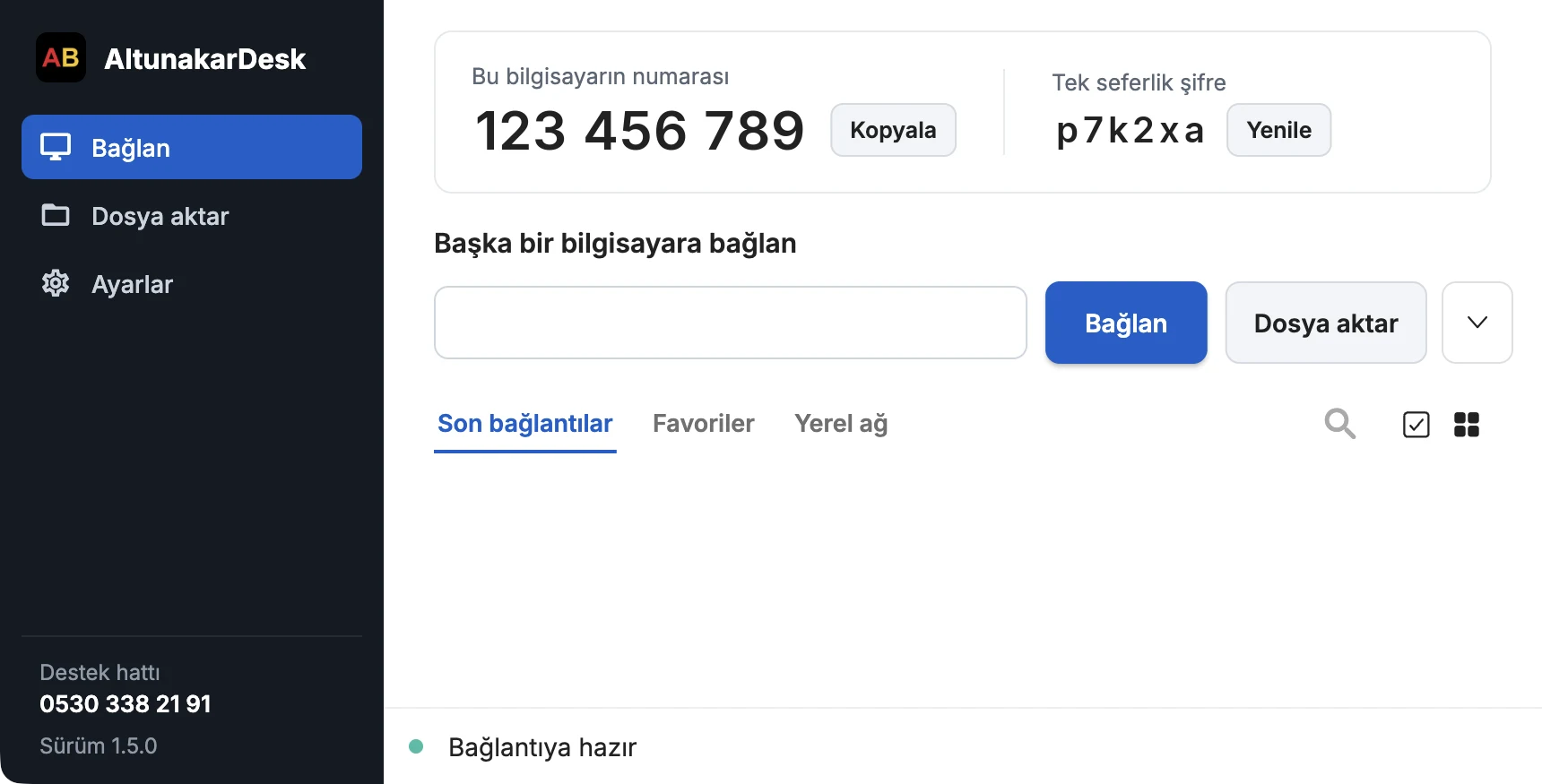
AltunakarDesk main window (sample ID and password).
Your download has started. Once the file has downloaded, follow the steps below in order.
Steps for the first launch
Windows and macOS display a security warning the first time you open an app that does not carry a Microsoft or Apple developer signature. This is expected, and you only need to confirm the warning once. We recommend downloading the program from this website only.
Windows
Run the downloaded file
When the download is complete, run AltunakarDesk-Windows.exe from your browser's download list or from the Downloads folder.
If your browser warns that the file “isn't commonly downloaded”, use the Keep option in the ⋯ menu next to the file.
AltunakarDesk-Windows.exeApplication · 26.5 MB
In the Downloads folder, the file appears with this icon.
Select “More info”
The warning “Windows protected your PC” appears. Select the More info link below the text.
Windows protected your PC
Microsoft Defender SmartScreen prevented an unrecognized app from starting. Running this app might put your PC at risk.
More infoDon't run
Simplified drawing of the Windows warning dialog.
Select “Run anyway”
The dialog shows the name of the app and its publisher. Select Run anyway to start AltunakarDesk.
If Windows asks “Do you want to allow this app to make changes to your device?”, select Yes.
Windows protected your PC
Microsoft Defender SmartScreen prevented an unrecognized app from starting. Running this app might put your PC at risk.
App:
AltunakarDesk-Windows.exe
Publisher:
Unknown publisher
Run anywayDon't run
Simplified drawing of the Windows warning dialog.
Share your ID and password with our technical team
When AltunakarDesk opens, This computer's ID and the One-time password are shown at the top. You can give this information to our technician by phone or via WhatsApp.
Once the connection is established, a window appears in the corner of your screen showing who is connected and which permissions have been granted. For connection requests made without a password, you need to select Accept in this window. The connection ends when you close the window.
If you see an Install button in the program, no action is required; our technician will guide you if a permanent installation is needed.
Sample values; the ID and password on your screen will differ.
Mac
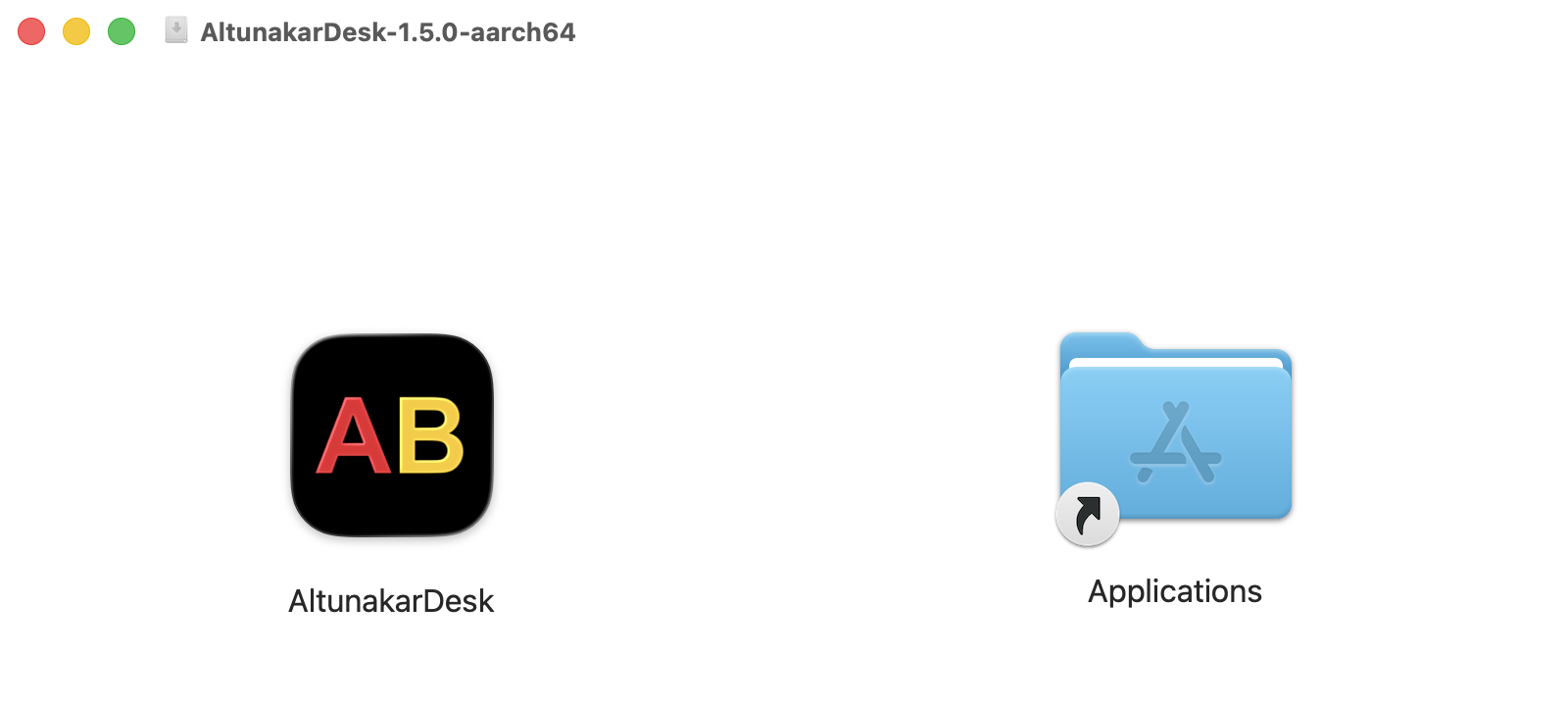
Drag the app to the Applications folder
Open the downloaded AltunakarDesk-Mac file (.dmg). In the window that opens, drag the AltunakarDesk icon on the left onto the Applications folder on the right.
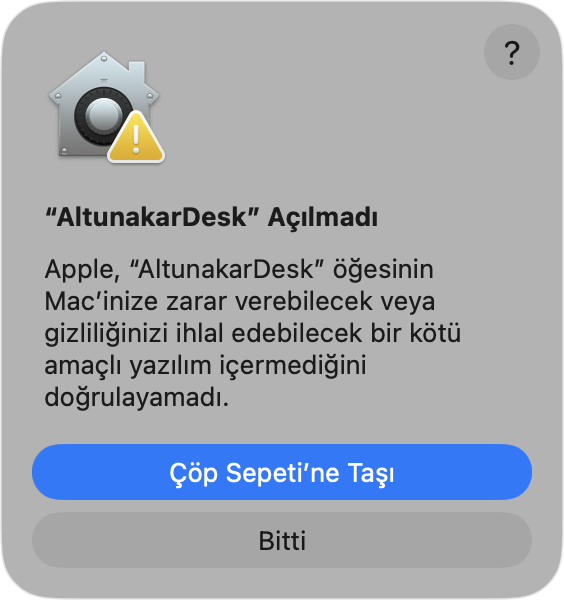
Select “Done” in the warning
When you open AltunakarDesk from the Applications folder, the warning “AltunakarDesk” Not Opened appears. Select Done; do not use the Move to Trash button.
If you see the message “You can't open this application because it is not supported on this Mac”, download the other Mac version. You can find out your processor type under “How do I find out which processor my Mac has?” below the download button.
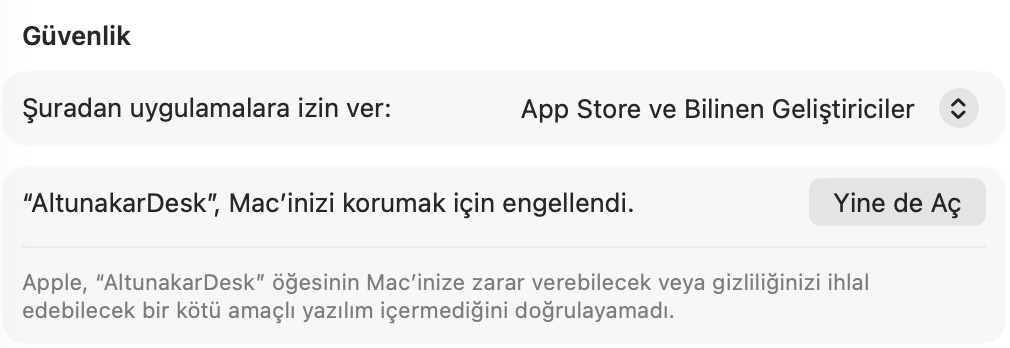
Confirm in Privacy & Security
From the menu in the top-left corner, open System Settings › Privacy & Security and scroll down. Next to “AltunakarDesk” was blocked to protect your Mac., select Open Anyway.
The system confirms this step once more by asking for your Mac password or Touch ID; select Open Anyway again. This is only required on first launch.
On older macOS versions, go to System Preferences › Security & Privacy › General.
System Settings › Privacy & Security
Grant screen recording and accessibility permissions
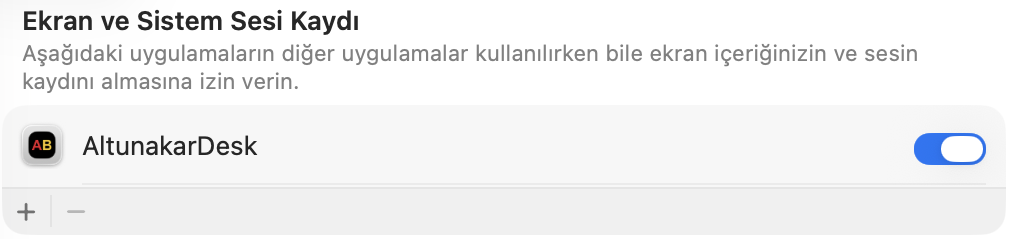
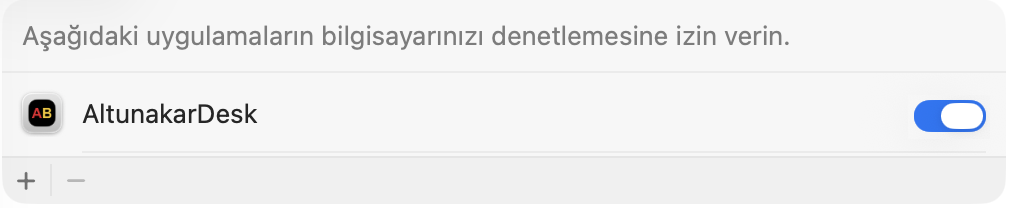
Two permissions are required so that your screen can be viewed and the mouse and keyboard can be controlled during remote support. Select Configure in the yellow banner in the program and turn on the switch next to AltunakarDesk in the settings that open:
Screen & System Audio Recording (Screen Recording on older versions)
Accessibility
If the system suggests Quit & Reopen, confirm it; the program restarts automatically.
AltunakarDesk window
Accessibility
System Settings › Privacy & Security
Share your ID and password with our technical team
When AltunakarDesk opens, This computer's ID and the One-time password are shown at the top. You can give this information to our technician by phone or via WhatsApp.
Once the connection is established, a window appears in the corner of your screen showing who is connected and which permissions have been granted. For connection requests made without a password, you need to select Accept in this window. The connection ends when you close the window.



 Accessibility